
Practical guide
How to build a website with AI: from prompt to published site
This tutorial follows one example from a rough idea to a live website. You will see what to put in the first prompt, what the AI website creator does, what to review, and how to publish without writing code.
Last updated September 23, 2026
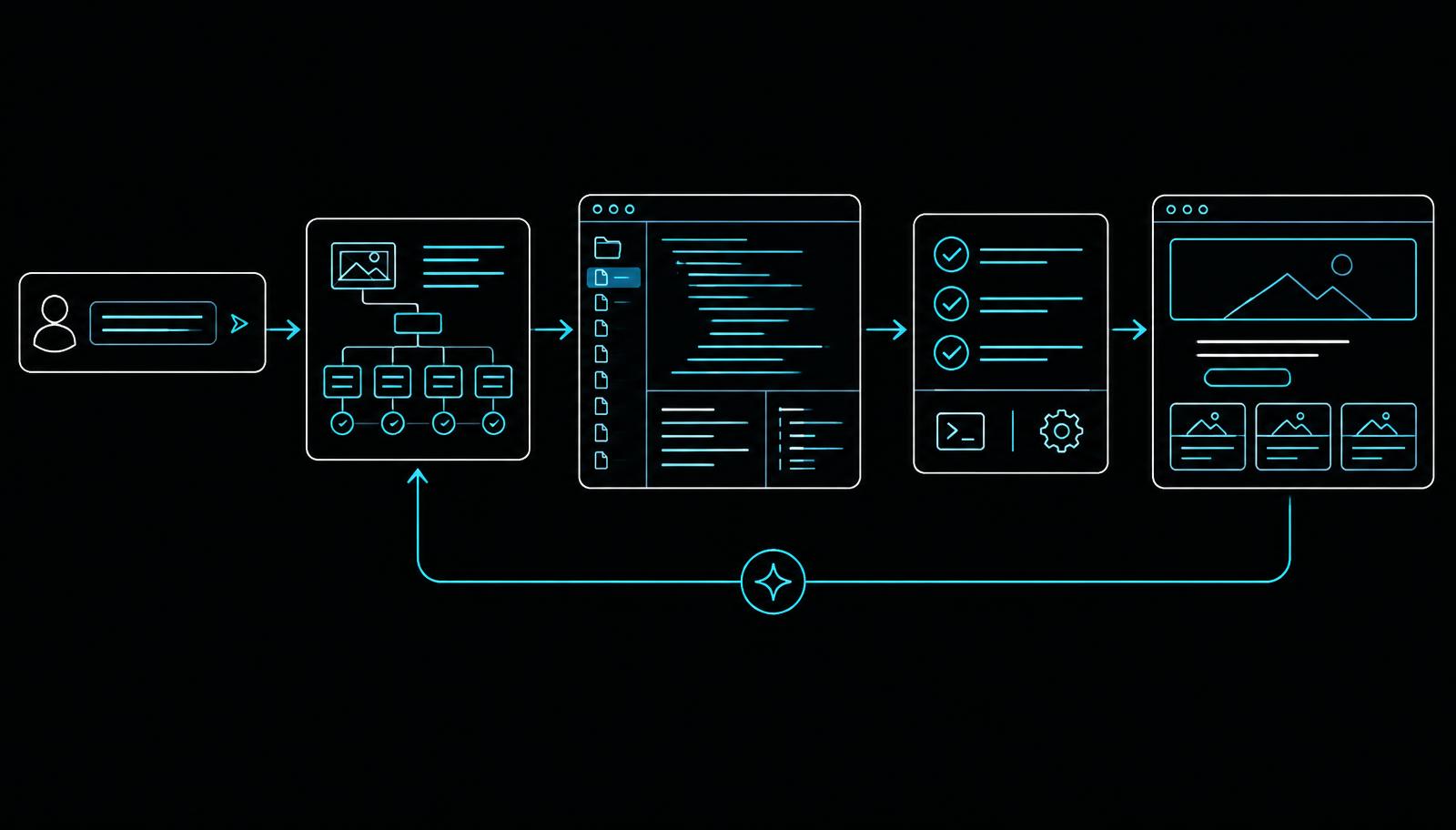
What an AI website creator actually does
An AI website creator turns instructions into a working project. Instead of choosing a template and filling every box yourself, you describe the business, audience, content, and visual direction. The agent decides how to structure the pages, writes the first version, and shows the result in a browser preview.
The important shift is that your job becomes directing and reviewing. AI is fast at producing structure, but you remain responsible for truthful prices, contact details, policies, product claims, and the final decision to publish.
Step 1: Prepare a useful website brief
Before opening the builder, write down five facts. They prevent the first draft from becoming a generic template:
- Purpose: what the website must achieve.
- Audience: who should immediately feel that the site is for them.
- Offer: the product, service, project, or work being presented.
- Action: book, buy, contact, join, download, or read.
- Proof: real testimonials, results, credentials, photos, or process details.
For this walkthrough, imagine a two-person ceramics studio in Pune. It needs a home page, class information, a small gallery, and an email booking action. That is enough context to begin.
Step 2: Write the first prompt
A strong prompt combines the brief with concrete design constraints. Start with this:
“Build a website for Kalpana Studio, a two-person ceramics workshop in Pune. The main goal is to fill weekend classes. Create a home page with an introduction, upcoming classes, a gallery, the making process, and an email booking call to action. Use warm natural colors, large close-up pottery photography, and calm editorial typography. Avoid a corporate or glossy look. Make the mobile version easy to scan.”
Notice what the prompt does not say: “make it amazing” or “make it modern.” Those phrases do not explain what the visitor needs. The example names the business, location, conversion goal, content, visual evidence, and a style to avoid.
If you have real copy, brand colors, or a reference website, include them. A reference can explain visual rhythm, but ask for the underlying qualities rather than an exact copy.
Step 3: Let the agent build — and read its work
Submit the prompt in Build mode. Black Hole evaluates whether essential information is missing, then creates the site and reports real activity as it works. If a choice would materially change the result, such as whether classes require payment or only an enquiry, answer the clarification before the build continues.
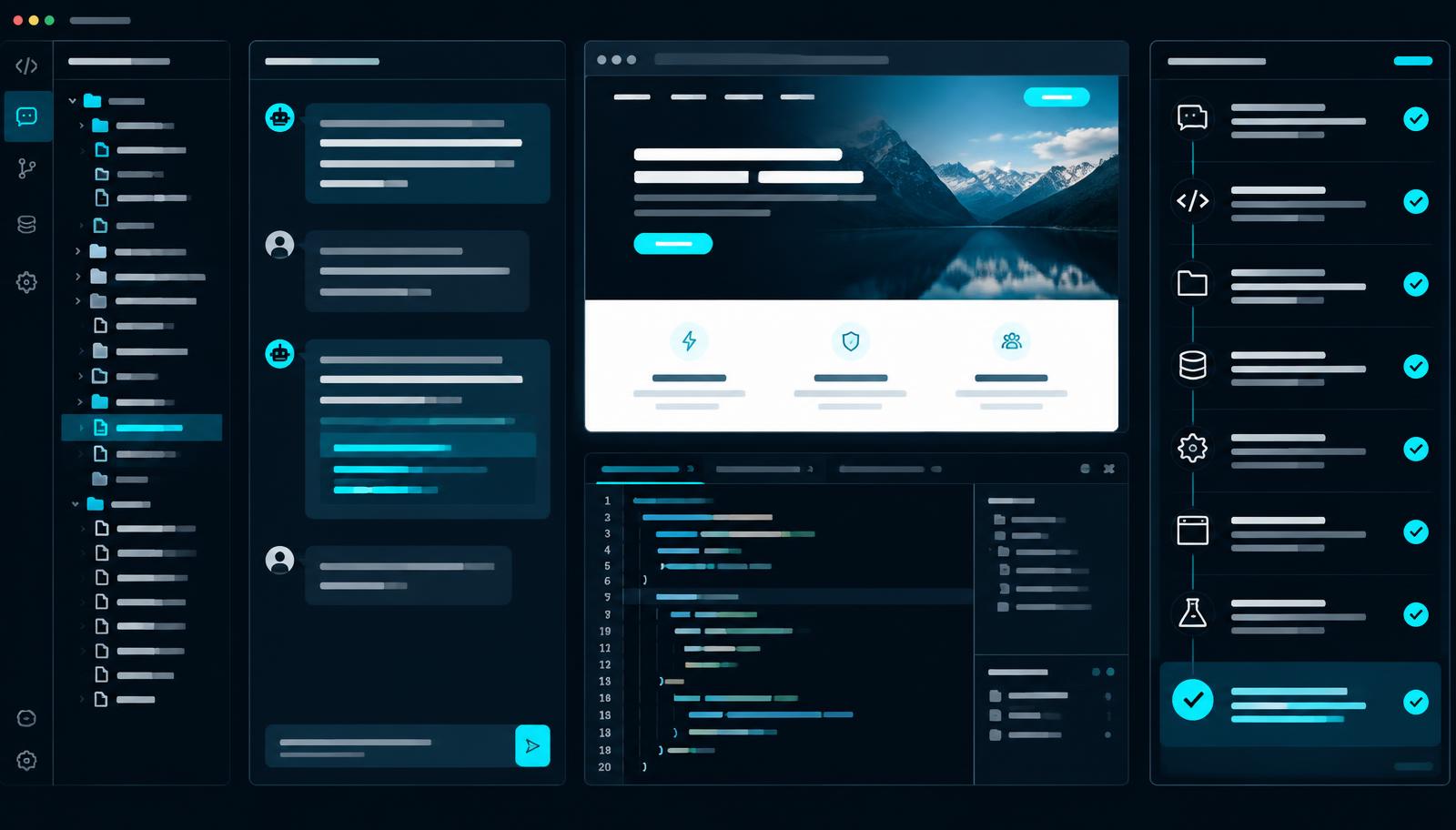
You do not need to manage the internal plan. The agent records the work it needs to do and proceeds. Watch for completed files, checks, and the preview rather than a decorative loading animation.
Step 4: Review the first draft like a visitor
Do not begin by changing colors. First, test whether the page communicates the right thing:
- Can a visitor identify the business and location from the first screen?
- Is the next class or primary offer easy to find?
- Does the main button describe the action clearly?
- Are every price, date, email address, and claim accurate?
- Does the mobile version keep the same hierarchy without horizontal scrolling?
- Do navigation links, forms, and buttons work?
Then send one focused revision at a time. For example:
“Replace the generic introduction with a shorter statement about small-batch tableware. Move the next workshop above the gallery, show its date and price, and change the main button to “Reserve a workshop place.” Keep the current typography and colors.”
This is how to use AI to build a website without losing control: point to the visible problem, describe the desired outcome, and protect the parts that already work.
Step 5: Check search and trust details, then publish
Before publishing, complete a final pass:
- Give every public page a specific title and description.
- Use one clear H1 that matches what the page offers.
- Add meaningful alternative text to informative images.
- Remove invented testimonials, addresses, phone numbers, and results.
- Check the privacy policy if a form collects personal information.
- Preview the site at phone and desktop sizes.

Select Publish in the workspace when the checks pass. Black Hole creates a public address for the site. Future edits stay private until you publish again, so visitors continue seeing the last completed version while you work.
The finished example: what changed from the first prompt
Browse the Black Hole showcase to see how different prompts become portfolios, product pages, dashboards, and business sites.
Common AI website mistakes to avoid
- Prompting with adjectives only. “Premium and modern” is weaker than naming the audience, evidence, and desired action.
- Requesting everything at once. Build the main visitor journey first, then add secondary features.
- Accepting invented facts. AI can draft copy, but only you can confirm business details and claims.
- Ignoring mobile. A desktop preview cannot prove that menus, forms, and long headings work on a phone.
- Rebuilding instead of revising. Focused follow-up prompts preserve good work and make each change easier to judge.
Frequently asked questions
Can AI build an entire website?
Yes. An AI website creator can generate the layout, copy, pages, navigation, styling, and working interactions from a written brief. You still need to review factual details and test the final result before publishing.
Do I need to know how to code?
No. You can describe changes in normal language and work from the live preview. Black Hole also keeps the generated files available for people who want to inspect or export the code.
What should I include in an AI website prompt?
Include what the business does, the target visitor, the main action, required pages or sections, real content, and a clear visual direction. Specific constraints produce a more useful first draft than broad adjectives alone.
Can I edit the website after AI creates it?
Yes. Send focused follow-up instructions, such as replacing a section, changing the visual hierarchy, or improving the mobile menu. Each request updates the existing project rather than forcing you to start again.
How do I publish an AI-built website?
Review the copy, links, forms, mobile layout, page title, and description. Then use Publish to create a public address. You can continue editing and republish later without changing that address.
Turn your brief into a working website
Start with the example prompt, replace its details with yours, and refine the result from the live preview.
Build your website